Setup takes about 5 minutes. Install DeskRest from either official channel (your 7-day free trial starts at first launch), run the short onboarding, pick the rhythm for your short eye breaks and 3-minute movement breaks, and switch on call detection so reminders stay out of your meetings. This guide walks the exact order that avoids backtracking, using the app’s own settings screens.
Step 1 — Install and launch
Get the app from the download page — direct .dmg or Mac App Store, both install the same thing (macOS 14.2+ required). Launch it and look for the icon in your menu bar next to the clock — that’s where DeskRest lives.
Step 2 — Run the onboarding
The first launch walks you through focus time, breaks and working hours, and asks for the permissions it needs — allow notifications at minimum, since that’s how break reminders reach you. Everything the app detects is processed on your Mac.
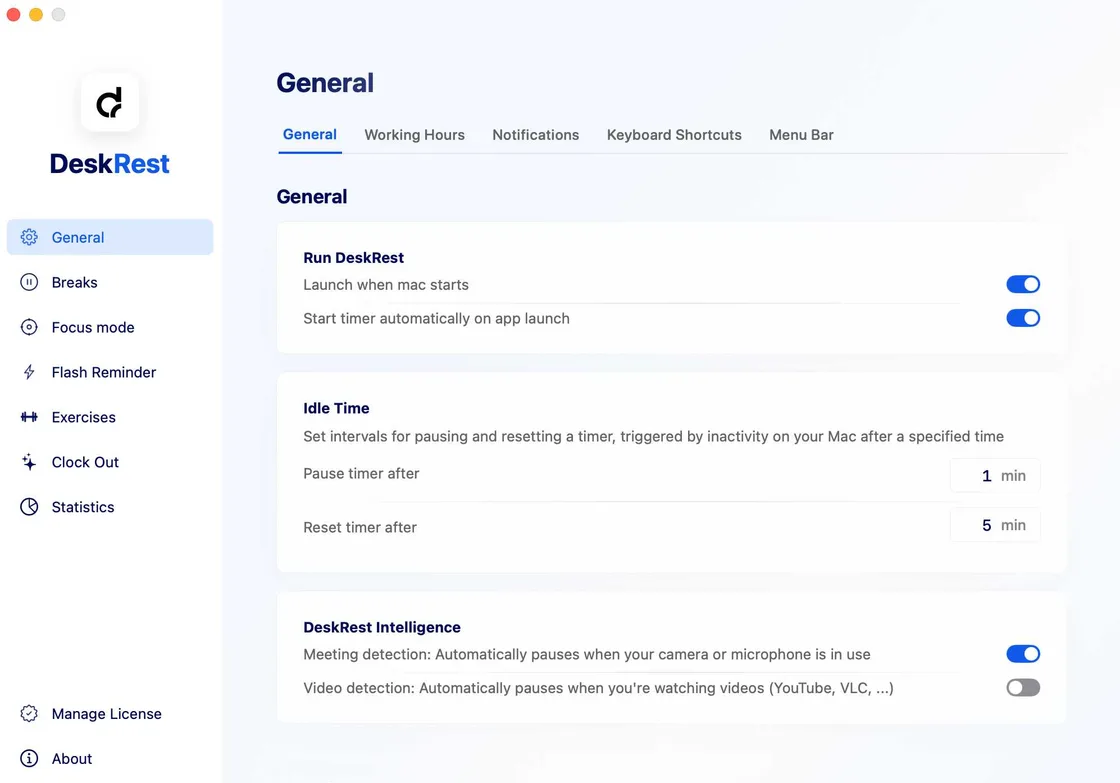
Step 3 — Choose your break rhythm
Open the Breaks tab. The classic starting point is the 20-20-20 pattern — a short eye break roughly every 20 minutes — plus a 3-minute movement break less often. Adjust the spacing to your tolerance; shorter gaps feel intrusive on day one but disappear into routine within a week. You can also assign different exercises to short and long breaks here.
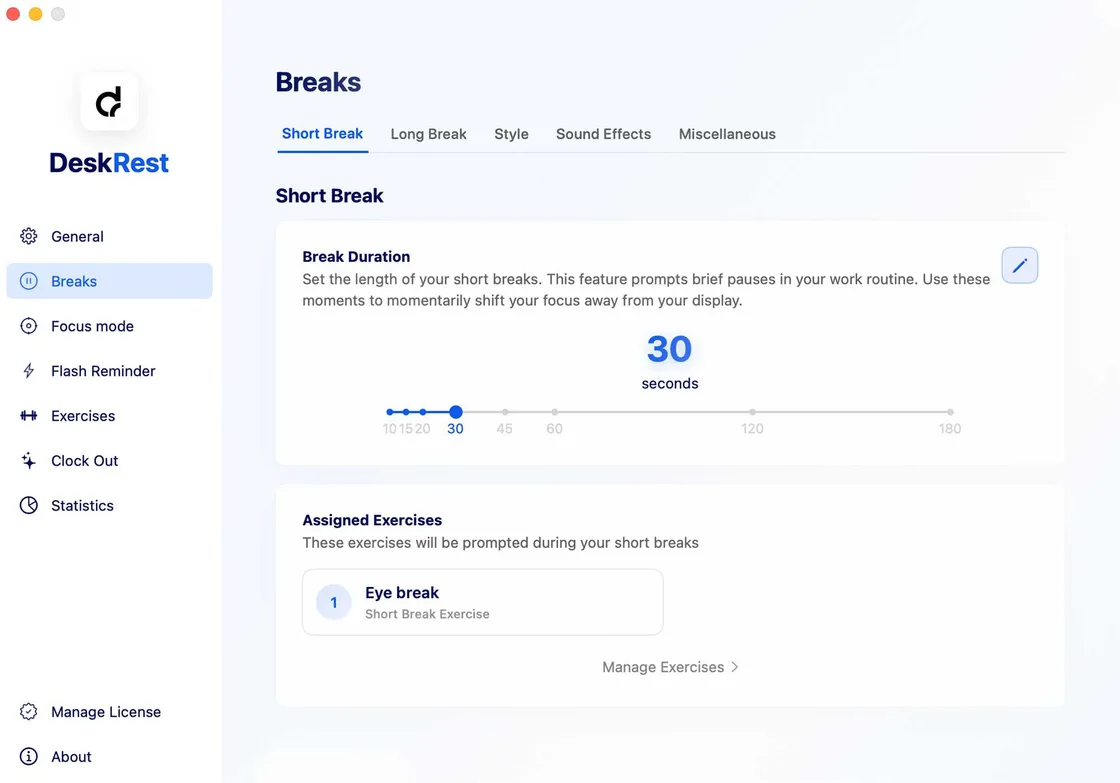
Step 4 — Turn on smart detection
In the Focus/detection settings, enable video-call and meeting detection (Zoom, Meet, Teams and Arc are covered, with app whitelisting since v1.19.0) and connect your macOS Focus modes. This is the feature that separates DeskRest from a plain timer — breaks wait their turn instead of firing mid-call.
Step 5 — Make the breaks yours
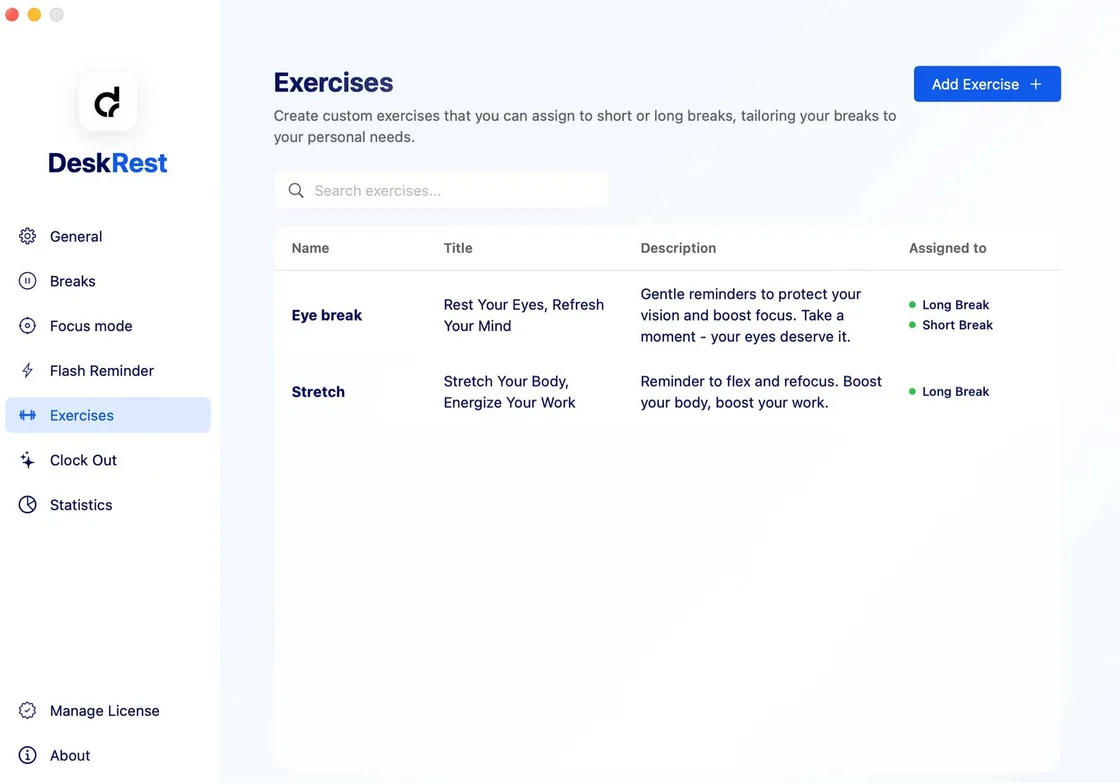
Add custom exercises in the Exercises tab (neck rolls, eye drills, stretches — unlimited), and pick a calmer background or audio cue if the default isn’t your taste.
Step 6 — Set working hours and Clock Out
Define per-day working hours so evenings stay silent — the official working-hours guide covers the per-day options in depth — and switch on Clock Out for a firm end-of-day nudge with notes for tomorrow. Bought a license already? Activate it per the official activation steps. From here the streak counter takes over — day one starts the moment you complete your first break.
Next steps
Browse the full feature tour to see what else is tunable, check the FAQ for quick answers, or watch the version history — new settings appear every few weeks.